Help Center › Get started
Scrypt Wallet home screen and Profile settings explained
Short answer: The home screen shows your coins and the main actions: Fund My Wallet, Send, Receive and Buy. The menu opens Dashboard, Wallet, Transactions, Dapp Store, Recovery Key and Profile. Profile holds your Scrypt ID, your wallets, contacts, security options like PIN and Passkeys, preferences and the Report an issue form.
Questions this guide answers
- Where is the Recovery Key page in Scrypt Wallet
- What does Profile do in Scrypt Wallet
- How do I replay the Scrypt Wallet tour
- Where do I report a problem in Scrypt Wallet
- How do I change Scrypt User to Miner
The home screen
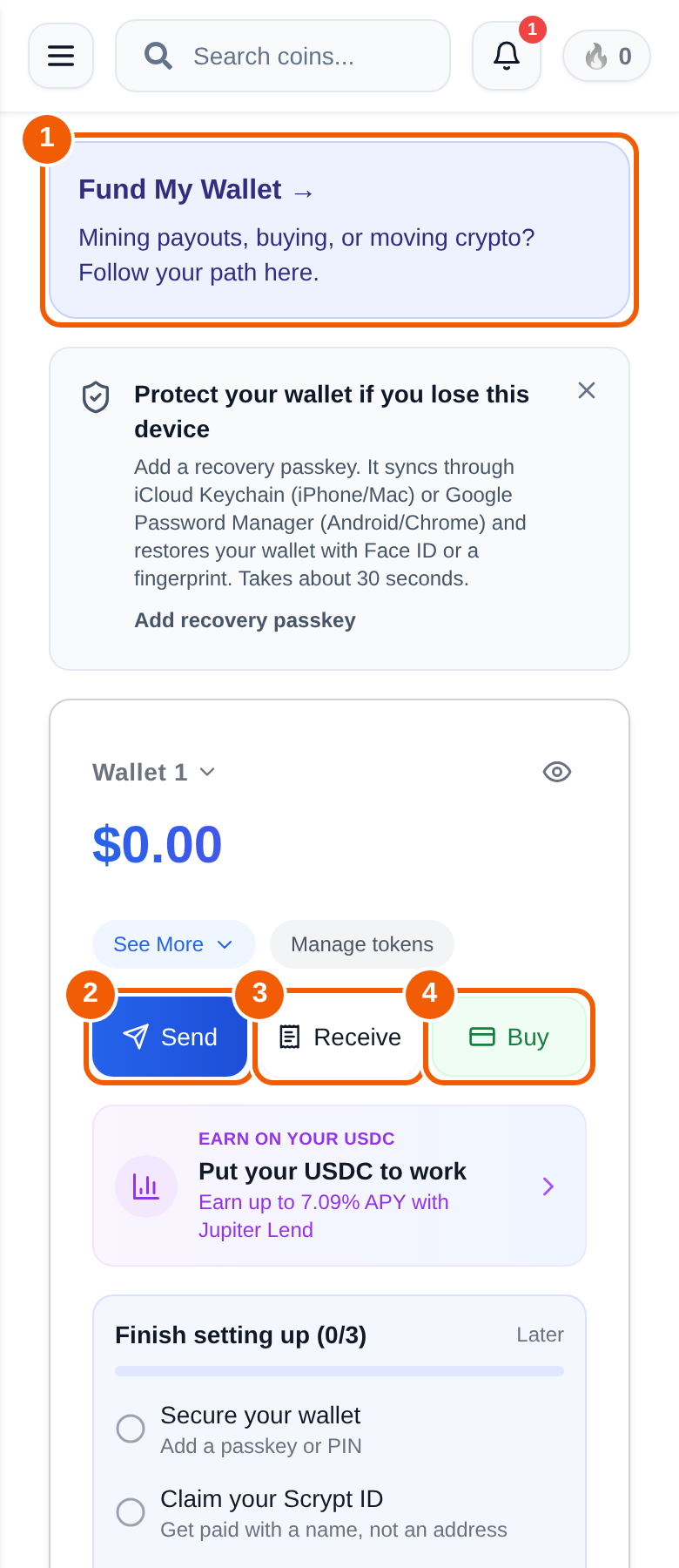
- Fund My Wallet ① asks what you want to do first: receive mining rewards, buy crypto, move crypto from another wallet, swap, or just explore.
- Send ② starts a transfer. See How to send crypto.
- Receive ③ shows your address and QR code for a coin. See How to receive crypto.
- Buy ④ lets you choose a payment provider to fund your wallet.
- Below them is your coin list. Tap a coin to open its page with price chart, Send, Receive and swap options. Use Search coins at the top to find one.
- You may also see cards such as Protect your wallet if you lose this device, which links to passkey recovery, and a Finish setting up checklist.
The menu
The menu at the top left opens Dashboard (home), Wallet, Transactions (your history, with search and filters), Dapp Store, Recovery Key and Profile. Your points balance also shows there.
Profile settings
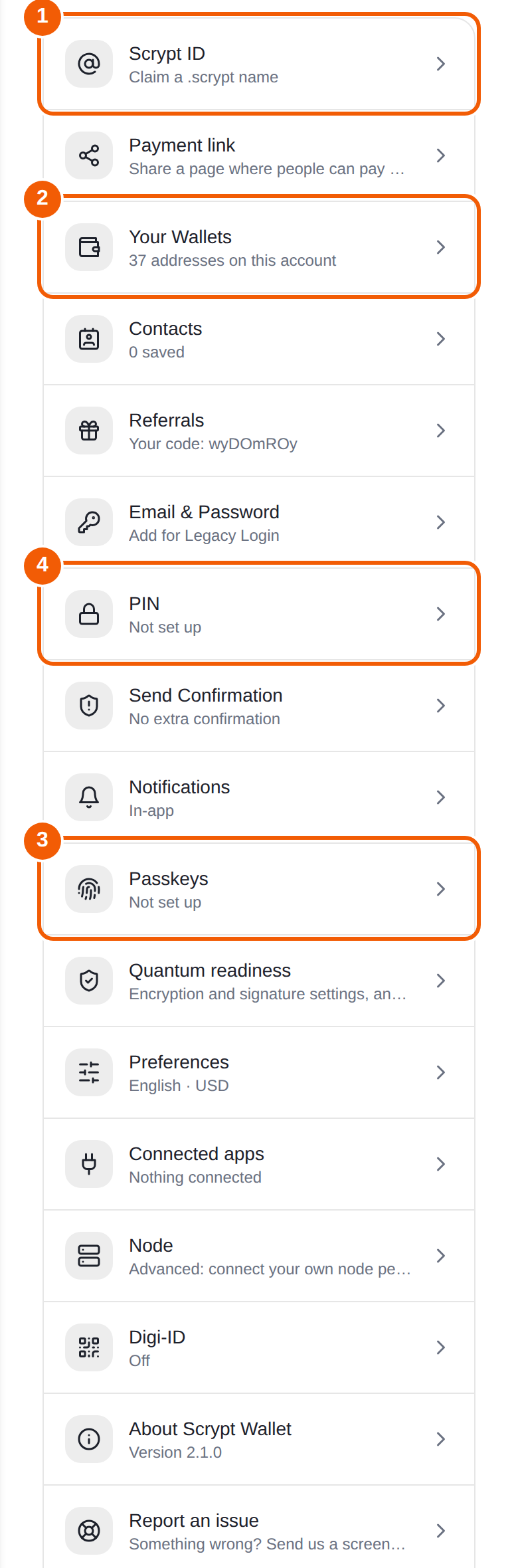
- Scrypt ID ①: claim a name like yourname.scrypt. See How to claim a Scrypt ID.
- Payment link: share a page where people can pay you.
- Your Wallets ②: the addresses on this account.
- Contacts: saved addresses.
- Referrals: your referral code.
- Email & Password: add a legacy login. Not needed for normal use.
- PIN ④ and Send Confirmation: how the wallet asks you to confirm signing.
- Notifications: in-app notifications.
- Passkeys ③: your recovery passkey.
- Preferences: language, currency and similar choices. This is also where you switch between Scrypt User and Miner.
- Connected apps: apps connected to your wallet.
- About Scrypt Wallet: shows the app version, and lets you replay the tour.
- Report an issue: send the team a report with the details. Never include keys or recovery phrases.
The guided tour
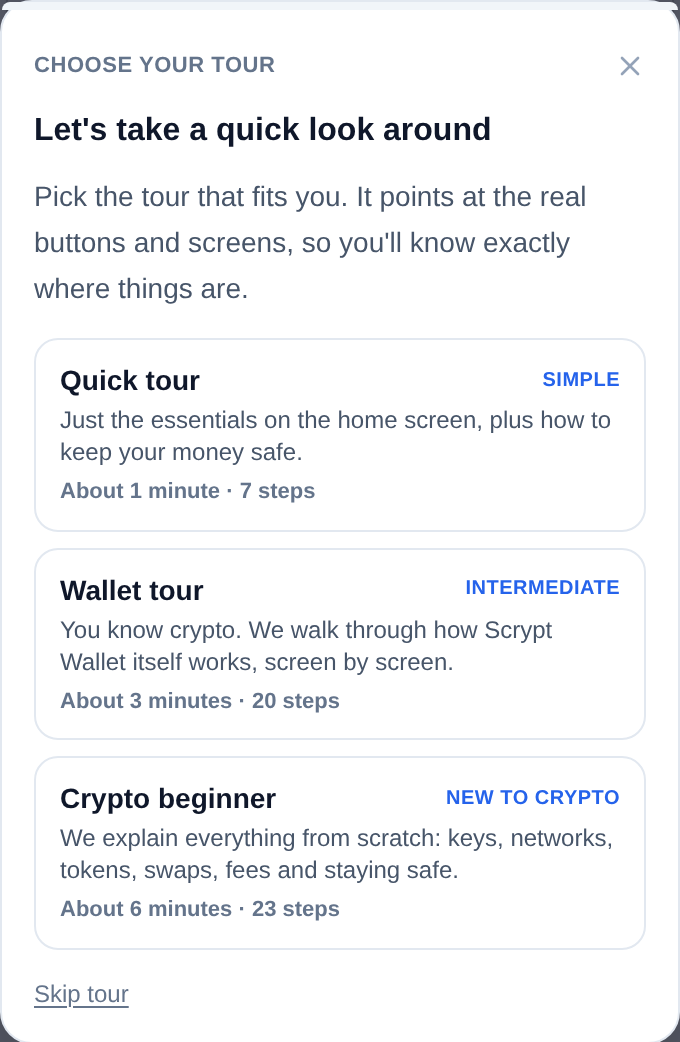
The tour points at the real buttons on screen. Quick tour is about 1 minute and 7 steps, Wallet tour is about 3 minutes and 20 steps, and Crypto beginner is about 6 minutes and 23 steps. Replay it any time from Profile, About.
Frequently asked questions
Where is my recovery key?
Open the menu and choose Recovery Key. See How to back up your Scrypt Wallet.
How do I switch between Scrypt User and Miner?
Profile, then Preferences. It only changes which coin list the home screen opens on.
Where do I report a bug?
Profile, then Report an issue. Include the coin, the screen, a public transaction id if relevant, and what you expected. Leave out secrets.
Where do I see my transaction history?
Menu, then Transactions. You can search and filter by type and asset, and export a CSV.