Help Center › Get started
How to create a Scrypt Wallet: the two-screen setup, with screenshots
Short answer: Go to wallet.scryptwallet.io, press Create Wallet after choosing Scrypt User or Miner, then on the Secure screen download your backup and lock your keys. Setup is two screens and takes a few minutes. No deposit is needed to explore.
Questions this guide answers
- How do I make a Scrypt Wallet
- What is Scrypt User vs Miner
- Is Scrypt Wallet free
- What do I do after creating a Scrypt Wallet
Before you start
Open wallet.scryptwallet.io and check the address bar. Creating a wallet is free. You will save a backup, so have somewhere private to put a file.
Screen 1: Create
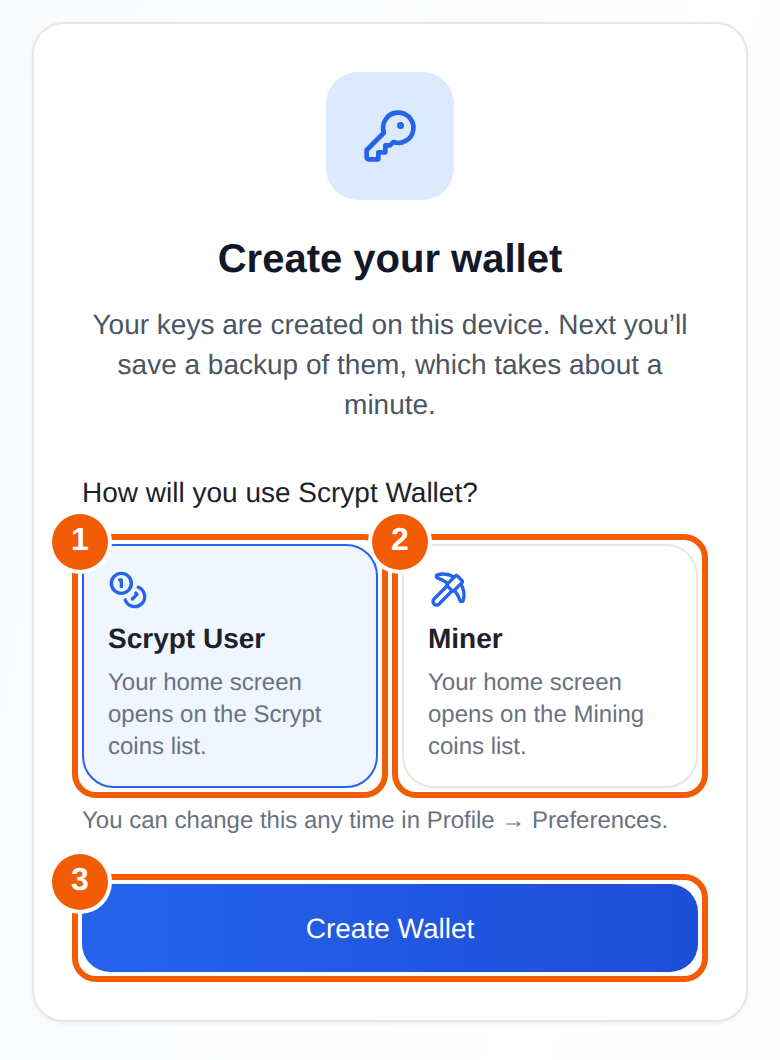
- Choose how you will use the wallet. Scrypt User ① opens your home screen on the Scrypt coins list. Miner ② opens it on the Mining coins list. It only changes which list you see first, and you can change it any time in Profile, then Preferences.
- Press Create Wallet ③. The screen explains that your keys are created on this device and that saving a backup takes about a minute.
Screen 2: Secure
Next comes the Secure your wallet screen. Download your backup, tick the box to confirm you saved it, and choose how to lock your keys with a PIN, a passphrase or a password. The full walkthrough is in How to back up your Scrypt Wallet. Do not skip it: the backup is how you get back in if you lose your device.
Then: what are you here to do?
After setup you land on a screen that asks what you want to do first. No deposit is needed to explore.
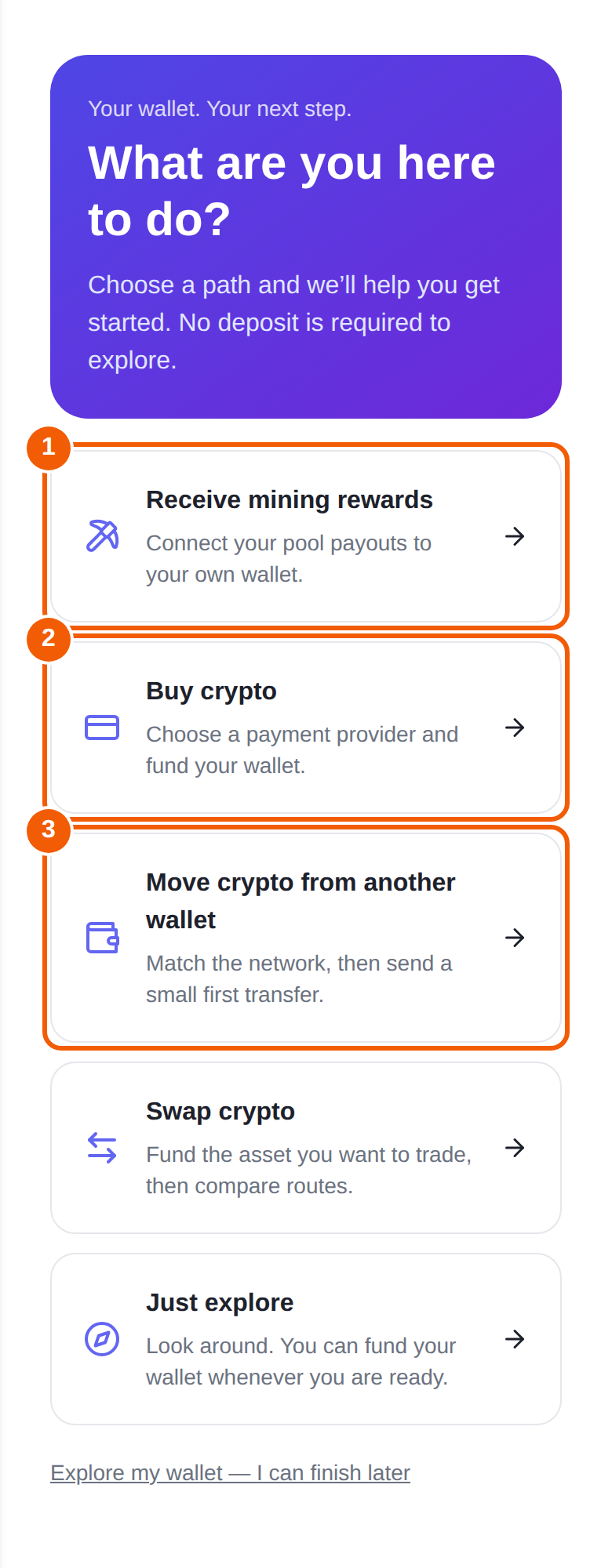
- Receive mining rewards connects your pool payouts to your own wallet. See How to receive mining payouts.
- Buy crypto lets you choose a payment provider and fund your wallet.
- Move crypto from another wallet: match the network, then send a small first transfer. See How to receive crypto.
- Swap crypto: fund the asset you want to trade, then compare routes.
- Just explore: look around and fund the wallet later.
A guided tour
New wallets are offered an interactive tour. Pick Quick tour (about 1 minute), Wallet tour (about 3 minutes) or Crypto beginner (about 6 minutes). It points at the real buttons on screen. You can replay it later from Profile.
Frequently asked questions
Is Scrypt Wallet free to create?
Yes. Creating a wallet is free and no card is needed to get started. Some actions use third-party services or network fees, which are shown before you confirm.
What is the difference between Scrypt User and Miner?
Only which coin list your home screen opens on first. Both give you the same wallet, and you can switch in Profile, then Preferences.
Do I need to deposit money first?
No. You can explore without a deposit.
Do I need an email address?
Setup does not ask for one. You can add an email and password later for the legacy login option.
What if I skip the backup?
You may not be able to get back into your wallet if you lose your device. Save the backup before you add funds.