Help Center › Recover and back up
How to back up your Scrypt Wallet recovery keys (and where to keep them)
Short answer: During setup, press Download backup, keep the file in private offline storage, tick the box to confirm you saved it, then lock your keys with a PIN, passphrase or password. You can see and copy each coin's recovery key later on the Recovery Key page.
Questions this guide answers
- How do I back up Scrypt Wallet
- Where are my Scrypt Wallet recovery keys
- What is the backup file for
- How do I see my private keys in Scrypt Wallet
Why the backup matters
Your wallet has its own recovery key for every coin, created on your device. Scrypt Wallet can keep an encrypted copy that only your recovery phrase or password can unlock, and a key you create as device-only is not copied anywhere. If you lose a key, your backup and the phrase or password that unlocks it, you may not be able to get that coin back. So the backup you save is your safety net.
During setup: the Secure screen
After you create a wallet, the Secure your wallet screen appears.
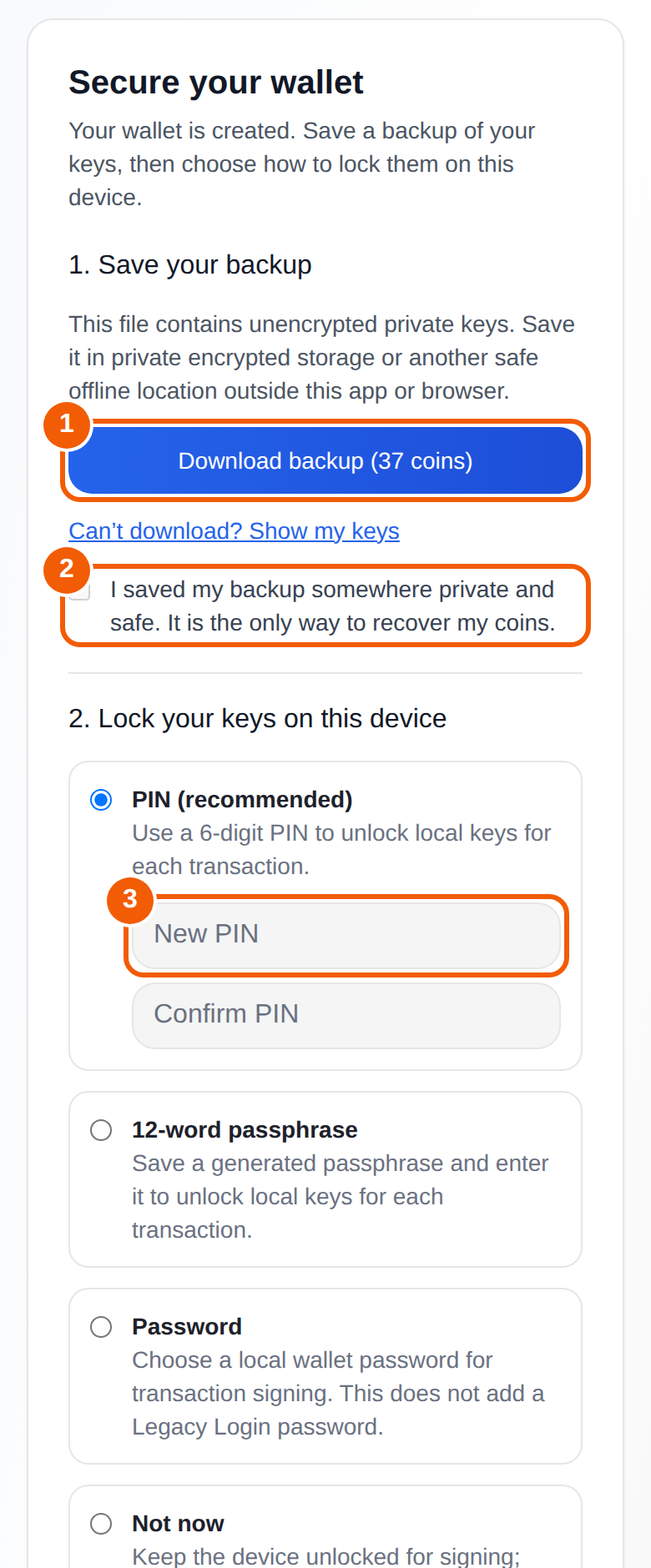
- Save your backup ①. Press Download backup. The button shows how many coins the file covers. The file contains unencrypted private keys, so save it in private encrypted storage or another safe offline place, outside this app or browser. If you cannot download, press Can't download? Show my keys and write them down.
- Confirm ②. Tick the box that says you saved the backup somewhere private and safe.
- Lock your keys on this device ③. Choose a PIN (a 6-digit PIN is recommended), a 12-word passphrase you save, or a password. Each is used to unlock your keys when you sign a transaction. Choosing Not now keeps the device unlocked for signing, and transactions still ask you to confirm. You can add protection later.
- Optional: add a Bread Crumbs hint, such as "Top desk drawer in home office", so you remember where the backup is. Do not write the keys in the hint. You can also set up passkey recovery here.
- Press Continue.
Later: see each coin's recovery key
Open the menu and choose Recovery Key.
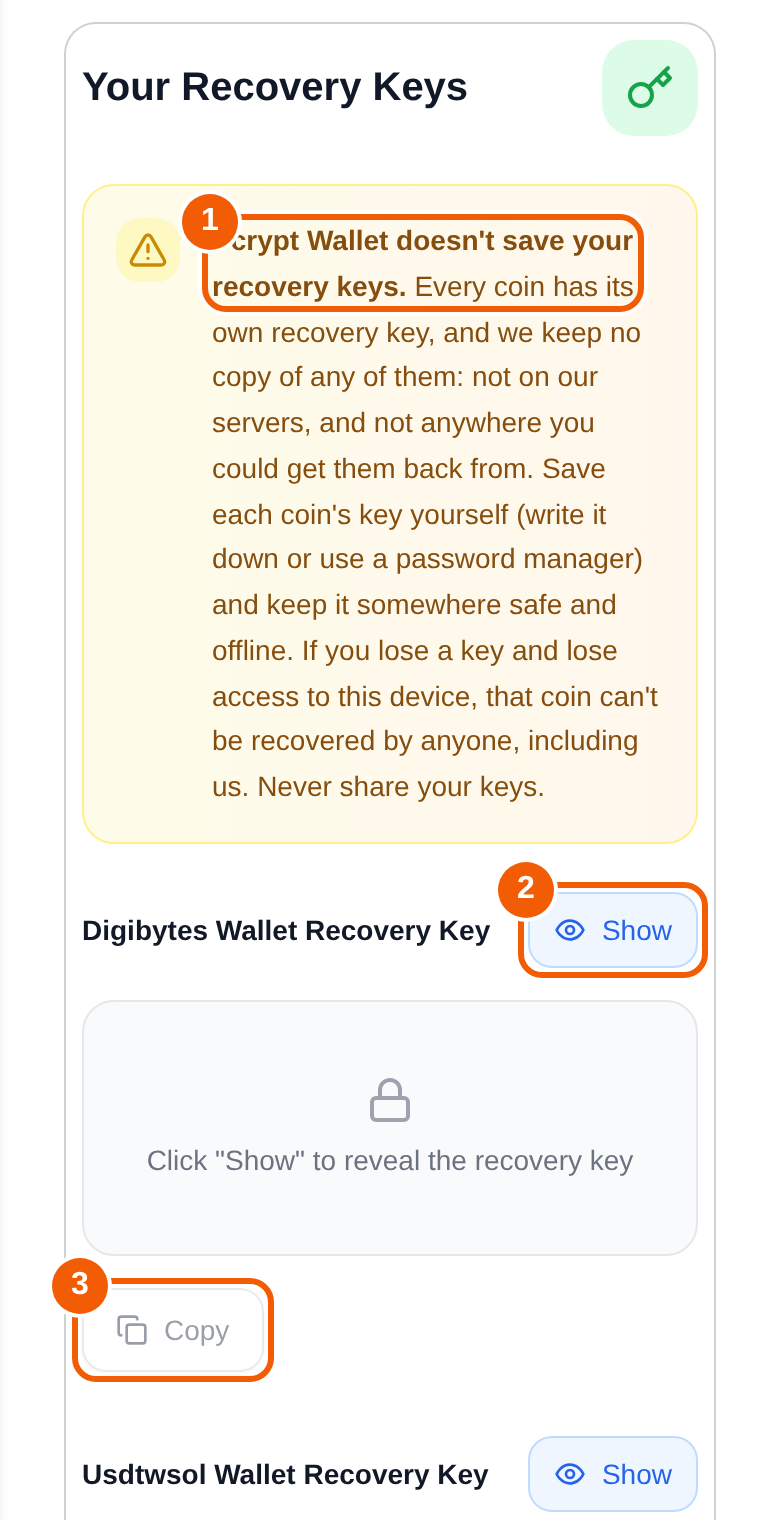
Press Show ② next to a coin to reveal its recovery key, and Copy ③ to copy it. Do this where nobody can see your screen, and do not paste keys into chats, emails or notes apps that sync to places you do not control.
Where to keep the backup
- Offline and private: an encrypted drive, a password manager that you trust, or paper in a safe place.
- In two places, so one accident cannot lose it.
- Never in a screenshot you share, a message, a support ticket or a social post.
When to back up again
Save a new backup whenever you add or replace keys, for example after you create a new key for a coin.
Frequently asked questions
Where is my Scrypt Wallet backup file?
It is the file you downloaded on the Secure your wallet screen. Check your Downloads folder and any cloud or password manager you saved it to.
Can Scrypt Wallet send me my keys if I lose them?
No. Any copy Scrypt Wallet keeps is encrypted with your recovery phrase or password, so it cannot be opened or sent to you without them. Keep your own backup.
Is the backup file encrypted?
It contains unencrypted private keys, so protect the file yourself and keep it offline and private.
What does the PIN do?
It unlocks your keys on that device when you sign a transaction. It does not replace your backup.
Should I add a passkey too?
Yes, as an extra way back in. It never replaces the backup. See Set up passkey recovery.