Help Center › Recover and back up
How to get back into your Scrypt Wallet on a new phone or after clearing your browser
Short answer: On wallet.scryptwallet.io open the Set up this device sheet and use whichever recovery you saved: Upload Keys from your backup file, Individual coin keys, or under Restore an older account a passkey, a 12-word recovery phrase or the legacy email and password. If you have none of your keys, no one can restore the wallet for you.
Questions this guide answers
- I lost my phone how do I recover my Scrypt Wallet
- I cleared my browser and my wallet is gone
- How do I restore Scrypt Wallet on a new device
- Scrypt Wallet login with recovery keys
- I forgot my Scrypt Wallet password
Why you got logged out
If you clear your browser data, switch phones or reinstall the app, you can be signed out, and clearing browser data can remove keys stored on that device. Your coins are not lost: they are on their blockchains. You get back in with the recovery you saved when you created the wallet.
Open wallet.scryptwallet.io (check the address bar) and go to the Set up this device sheet. It appears on the sign-in screen.
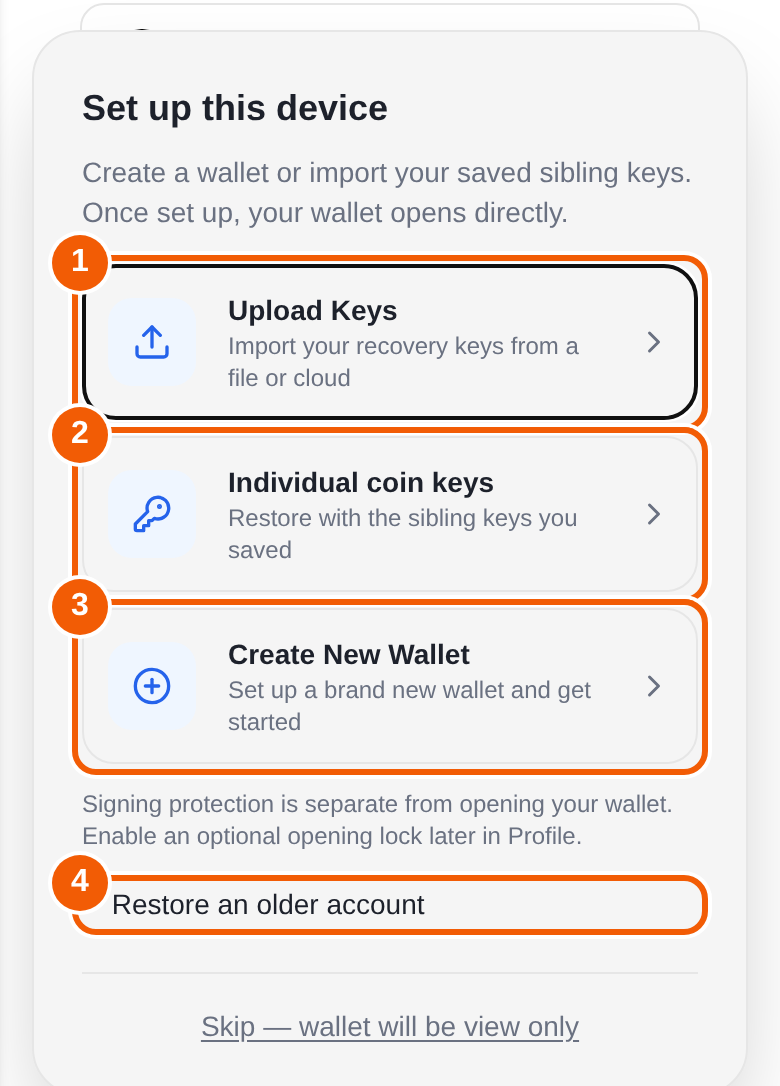
Pick the recovery you have
You have your backup file: Upload Keys ①
Choose Upload Keys and import your recovery keys from the file or cloud location where you saved them. This is the easiest route if you downloaded the backup during setup.
You have some of your coin keys: Individual coin keys ②
Choose Individual coin keys. Paste the key or recovery phrase for any chain you still have, and the wallet uses it to find your account. Leave the rest blank. A key can be a private key (WIF), a 12 or 24-word phrase, or a Solana secret.
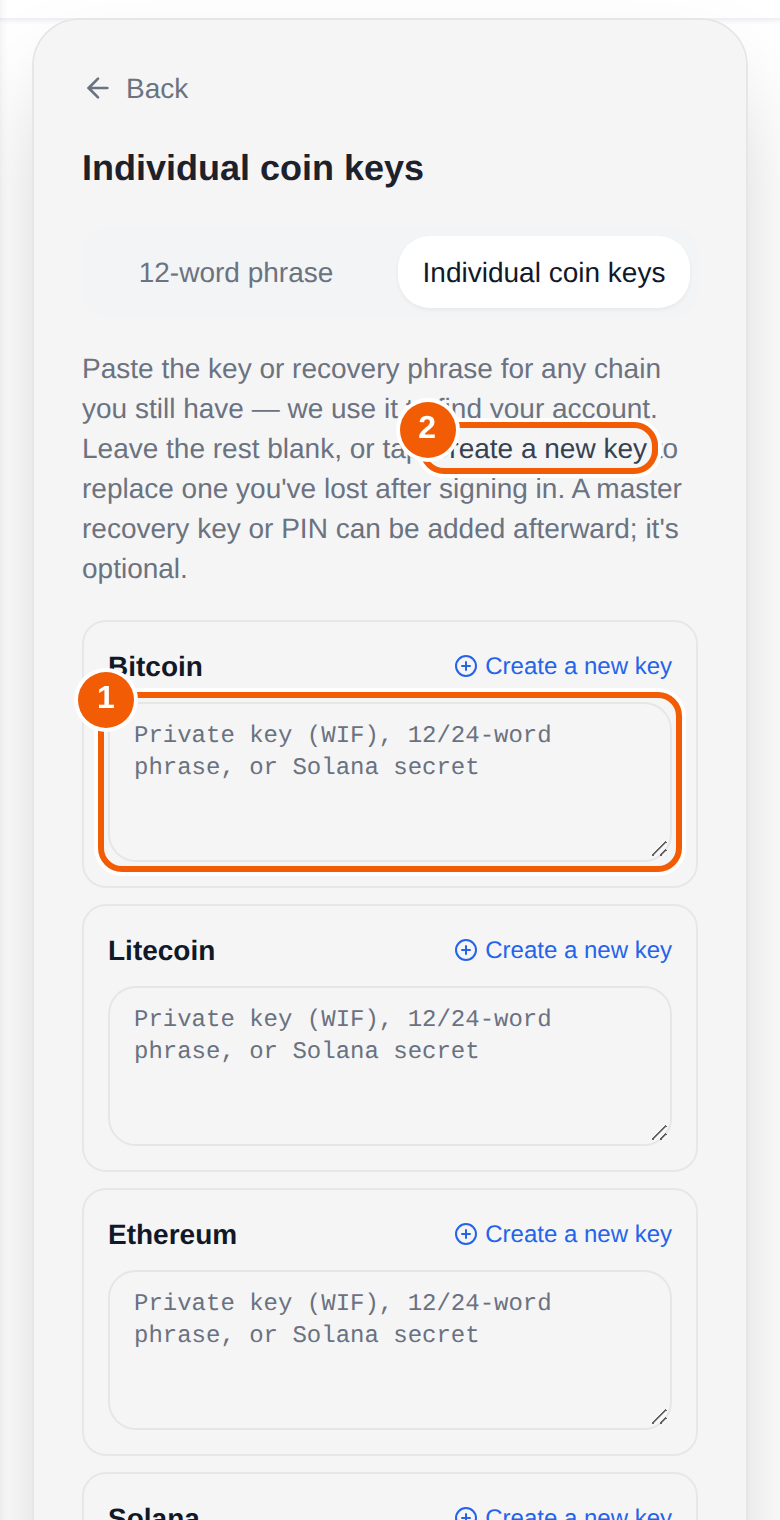
If you lost the key for one coin, tap Create a new key next to it to replace that coin's key after you sign in. A master recovery key or PIN can be added afterward, and both are optional.
Older accounts: Restore an older account ④
Open Restore an older account for the older sign-in methods.
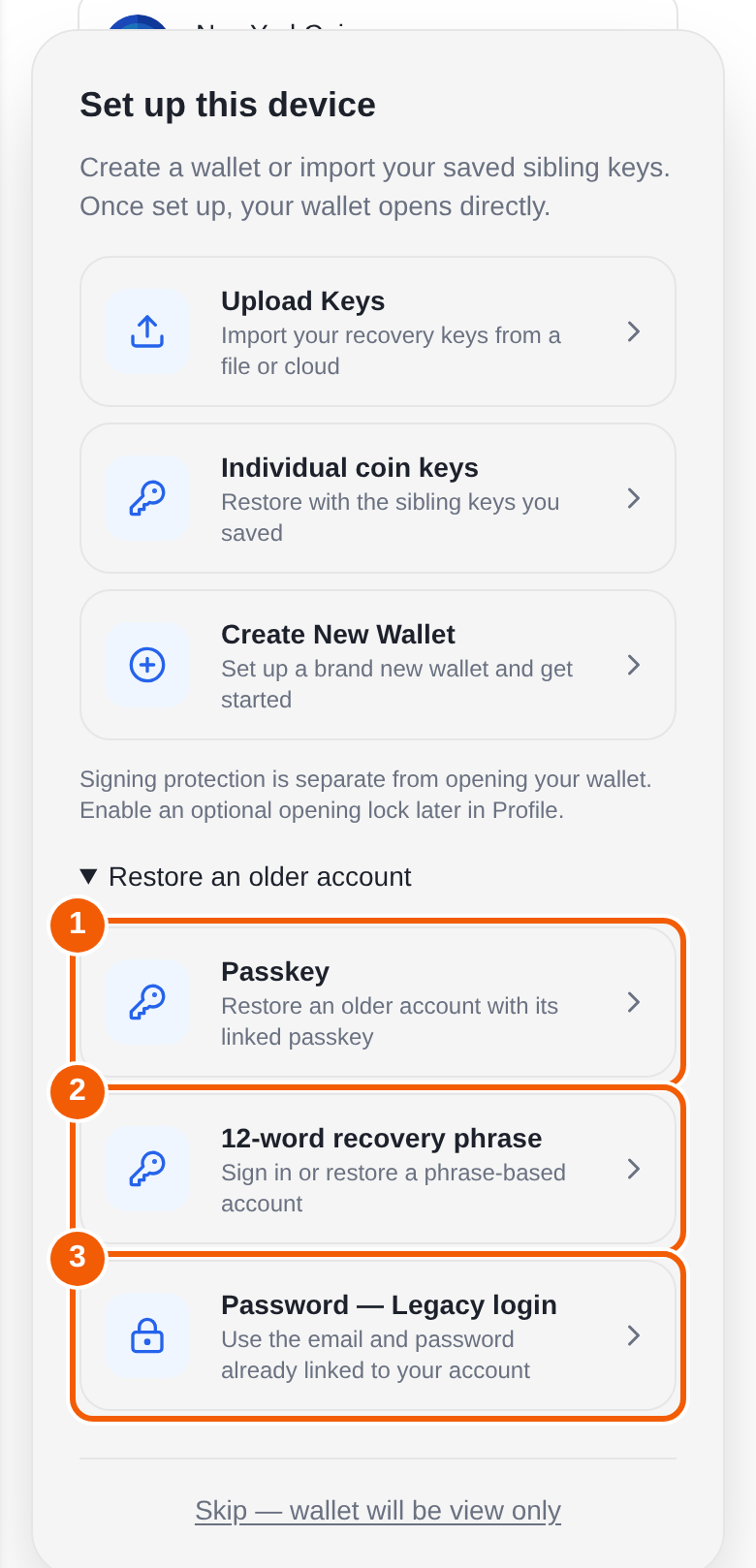
- Passkey ①: restore an older account with its linked passkey, using Face ID, Touch ID or your device passcode.
- 12-word recovery phrase ②: sign in to or restore a phrase-based account.
- Password, Legacy login ③: use the email and password that were already linked to your account.
If nothing works
- Check old notes, password managers, photos, email drafts and cloud storage for your backup file or keys.
- Any copy of your keys that Scrypt Wallet keeps is encrypted with your recovery phrase or password, so it cannot be opened without them. If you lose a coin's key, your backup and that phrase or password, you may not be able to get that coin back.
- Do not accept help from anyone who messages you first. Nobody from Scrypt Wallet will ask for your keys.
- If the coins came from another wallet app that changed or closed, see the migration guide.
Prevent this next time
Save your backup file now, somewhere private and offline, and add a passkey as a second route back in. See How to back up your Scrypt Wallet.
Frequently asked questions
I cleared my browser. Are my coins gone?
No. Coins are on their blockchains. Clearing browser data can remove the keys stored on that device, so you need your saved backup or keys to sign in again.
Can Scrypt Wallet reset my wallet like a normal account password?
An account password is not a substitute for your recovery keys. Wallet access depends on the keys.
What is the difference between Upload Keys and Individual coin keys?
Upload Keys imports a saved file of your recovery keys in one go. Individual coin keys lets you paste keys one coin at a time, and you only need keys for chains you still have.
I only remember my 12-word phrase.
Use the 12-word phrase tab under Individual coin keys, or the 12-word recovery phrase option under Restore an older account, depending on how your account was created.
Can I use a passkey?
Yes, if you linked one. See Set up passkey recovery.